
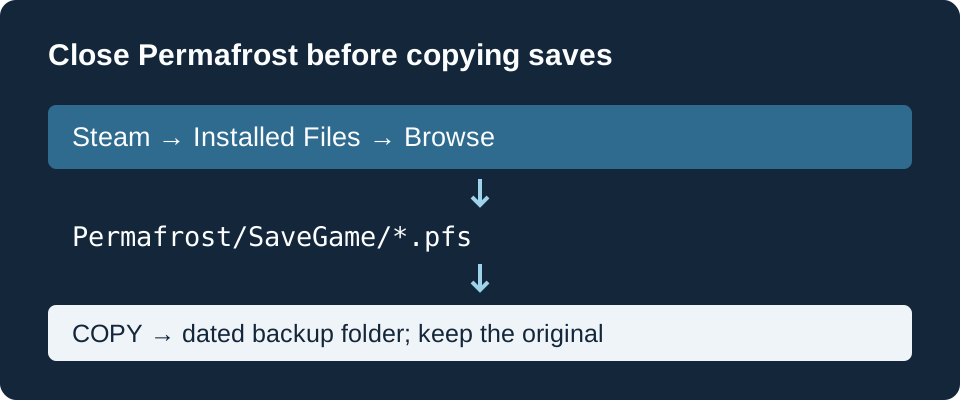
Find the installed game, not a guessed drive path
- In the Steam Library, right-click Permafrost and open Properties → Installed Files → Browse.
- From the game folder that opens, enter the inner Permafrost directory and then SaveGame.
- Look for the world’s
.pfssave. If several files are present and you cannot identify the right one, copy the whole SaveGame directory for safekeeping before changing anything.
The Mod API author’s 1.3.0 installation notes distinguish installation saves at Permafrost/SaveGame from local user data at %LOCALAPPDATA%/Permafrost. This is an author-documented Steam Windows path, not a directory this site has tested on your machine or verified for GOG/Epic.[1]
Make an independent copy
- Close Permafrost completely. If Steam is still synchronizing, let that finish before making the copy.
- Create a backup folder outside the game installation, using a date and world name you can recognize.
- Copy the
.pfsfile or SaveGame folder into it. Keep the original in place. - Open the backup folder and check that it contains the intended files. Keep this copy separate when installing mods or replacing saves.
The developers explicitly recommend backing up a world’s .pfs before major quest steps. Their instruction is to restore only with the game closed.[2]
Restore only when you have an earlier usable copy
First preserve another copy of the current files, even if that world is stuck. With the game closed, return the selected backup to its original save location. Loading it returns to the state recorded in that backup, so later progress is not included. Keep the other copies until you have checked the result.
The quest post tells players restoring their intended local backup to choose the local files if Steam Cloud raises a conflict. Apply that only when you know the local copy is the one you want; choosing a side in a conflict is not a repair process.[2]
What a backup can and cannot solve
| Situation | Useful next step | Limit |
|---|---|---|
| Before a risky quest or mod change | Make a separate dated copy. | This protects a known earlier state. |
| The current world is stuck, but an earlier backup loads | Preserve current files, then consider restoring that copy. | Progress after that copy will be absent. |
| No earlier backup exists and loading crashes | Keep the files and upload the affected save to the developers. | No universal corrupted-save repair is established. |
| You only found a Logs folder | Use it for a crash report; locate the world save separately. | Crash logs are not a substitute for a .pfs backup. |
For a damaged world, the developers provide a Toplitz file upload page (external site, opens in a new tab). Explain the quest, last action, solo/co-op role and whether a mod was involved. This guide has not tested save restoration or host migration.
Unofficial guide. Sources and their limits are identified below; this site has not tested these steps in the game.
Sources & verification
- Nexus Mods: Mod API author’s installation notes (external site, opens in a new tab). Version 1.3.0 notes document installation saves versus local user data. Directory claim is limited to the author’s Steam Windows setup; no mod installation is required.
- Steam developer: Quest Issues & Workarounds (external site, opens in a new tab). Updated October 14; .pfs backup, closed-game restore and local-file Cloud conflict guidance. Checked October 16.